What it does
tiles · webcam · deck templates · Studio · 5 themes
On this page
An old phone becomes a remote for a Windows PC. Mute, volume, games, apps and a webcam — one tap away, without leaving the window you are in.
What it is for
- Calls and streams. Mute the mic, drag the volume, switch the output device — no Alt+Tab.
- The phone as a webcam. Discord, Zoom and OBS see it as an ordinary camera.
- One-tap launch. Games, websites and apps from the Start menu.
- See what the PC is doing. A red mute, the volume level, CPU and memory load.
Three steps to start
- Run
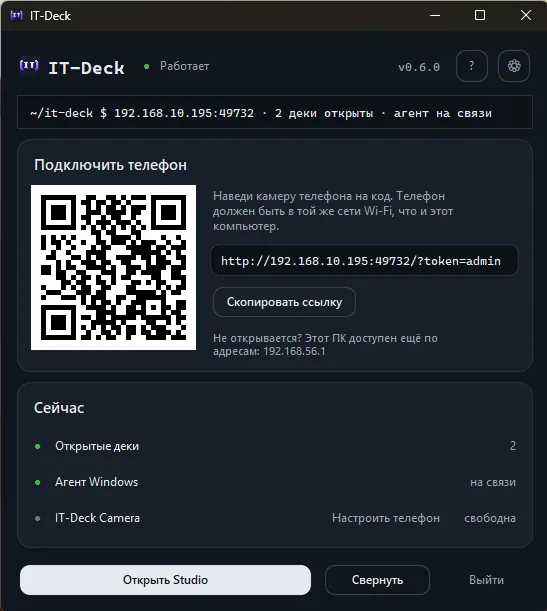
ITDeck.exeon the PC — it shows a QR code. - Scan it with the phone: the deck opens in the browser, no app to install.
- Tap the tiles — the PC runs the command and the tile shows the result.
What it looks like
How it works
You run a single ITDeck.exe on the PC and it shows a QR code.
The phone scans it and opens the deck in the browser, a grid of tiles. A tap on a tile
sends a command to the Windows agent, which runs it and reports back within
5 seconds.
The tiles show the real state of the PC, not just buttons:
- a muted microphone is red
- the volume tile shows the level
- Audio Switch names the current device
- VPN lights up while the client is running
- Webcam turns red when live and is labelled with the stream quality: “On air · 720p”
A long press opens a context menu with a "Force Stop" option to end a hung process.
The phone as a webcam
The phone's camera becomes the PC's webcam: Discord, Zoom and OBS see it as an ordinary IT-Deck Camera. It needs Windows 11 and is set up once from the IT-Deck window. When an app opens the camera, the deck offers Start by itself; the Webcam tile starts and stops the stream, and with no viewers it stops on its own.
The default deck
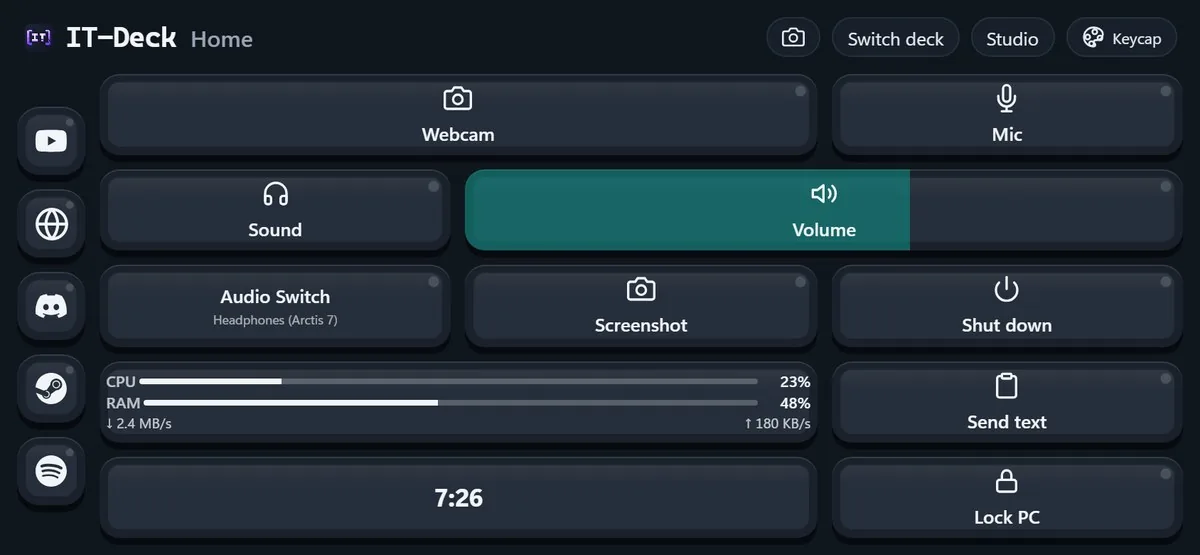
A fresh install starts with the Home deck: webcam, microphone, sound and volume, output device switching, screenshot, shut down and lock PC, PC load, a clock, sending text to the PC clipboard and a quick-launch bar (YouTube, browser, Discord, Steam, Spotify).
Other tile types
On top of that, Studio adds the other tile types:
- “Clock and weather”: the phone's time and date plus the weather for a chosen city (Open-Meteo, no API key, cached on the backend; a wide variant from 2×1)
- “PC load”: live CPU and memory bars and network speed; the data is read only while the phone is looking at the deck
- “Hotkeys”: presses a combination such as
ctrl+shift+m(mute in Discord) orwin+d; some games and anti-cheats ignore synthetic key presses - “Media key”: pause, next and previous track, stop, volume
- “Power”: lock, sleep, restart, shut down, with a “Run?” prompt on the phone
- “Program on/off”: starts a program or closes it if it is already running
- VPN: starts a VPN client, the tile lights up while it runs (the client's path is set in Studio; stopping is done through Force Stop)
- Terminal: starts an app, Windows Terminal by default
- Close Agent: stops the agent; bring it back with the “Start the agent” button in the IT-Deck window
Protection from accidental taps
Any tile can have “Ask before running” turned on (it is on by default for “Power”, “Program on/off” and Close Agent), so an accidental touch no longer stops the VPN.
Quick launch
The “Open site” tile opens any address in the PC's browser (presets: Telegram Web, Discord, YouTube, ChatGPT and others), and “Open program” picks a program straight from the PC's Start menu, Microsoft Store apps included.
Such buttons go to the quick-launch bar: up to seven square buttons outside the grid, at the bottom when the phone is upright and on the left when it is sideways.
The icon can be:
- a built-in symbol
- a logo (services, and also games and launchers: Steam, Epic Games, Battle.net, Valorant, Dota 2, Counter-Strike and others; for an installed game it is filled in automatically)
- a pair of letters or an emoji
- the site's own icon
Several decks and templates
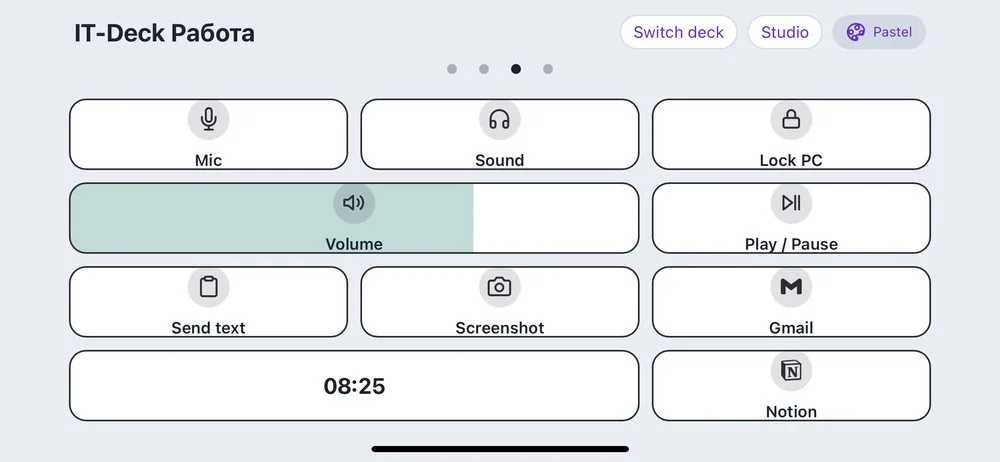
On the phone decks are paged with a swipe; the dots under the header show where you are and switch decks when tapped.
In Studio the “Decks” window reorders, renames, downloads and deletes decks and turns off swipe switching, for those whose finger changes the deck by accident. A new deck can start empty, from a file or from one of six templates: Home, Streamer, Work, Gamer, Calls and Music & video.
A file always becomes a new deck and is checked by the same rules as a tile saved in Studio.
When the PC is unavailable
When the PC side goes away (the agent or IT-Deck itself is closed), the deck turns into a full-screen seven-segment clock and comes back by itself as soon as the PC is reachable again.
Studio
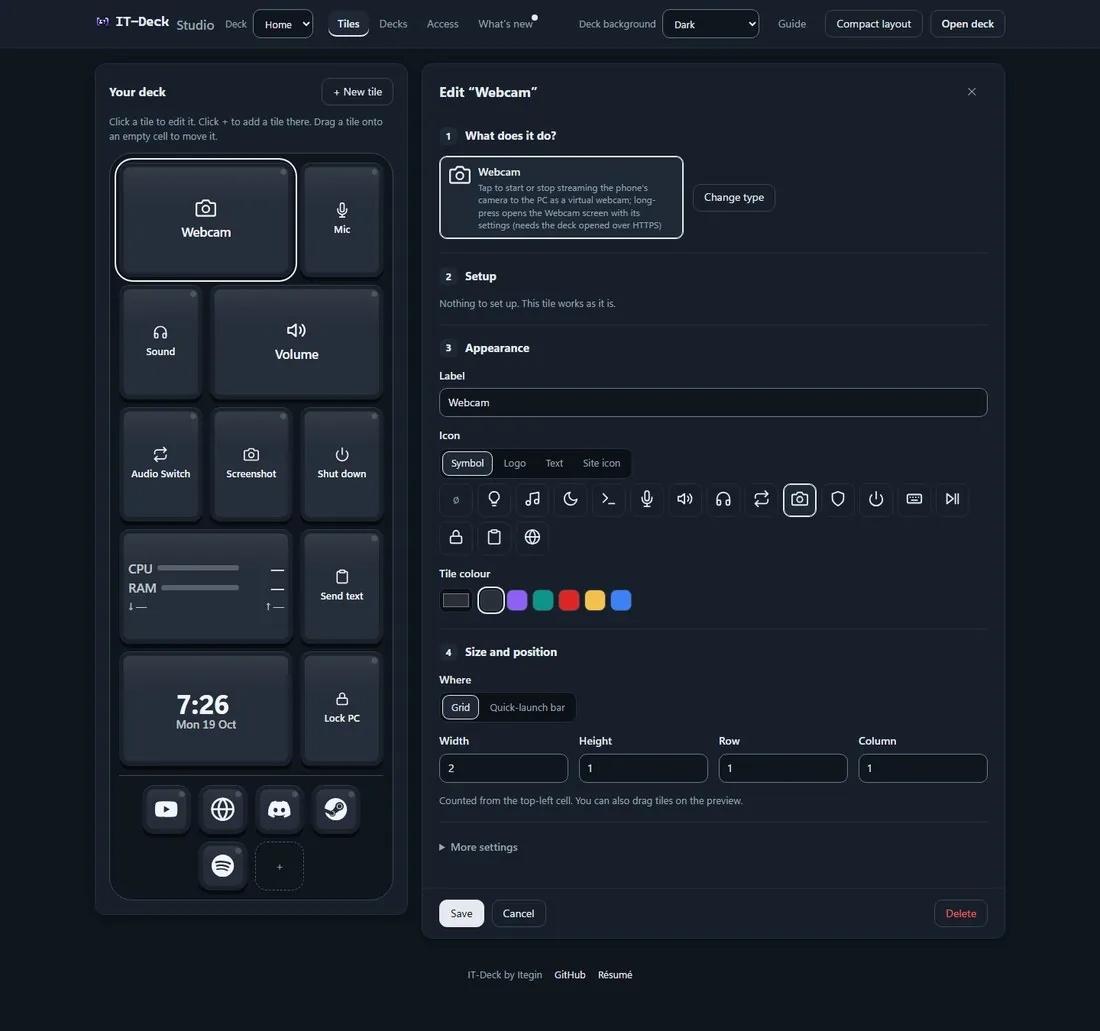
Studio is a page on the PC where the deck is built: a live preview (a click on a tile edits it, “+” on an empty cell adds a new tile, dragging moves it) and a step-by-step editor in which a tile's action is chosen from cards instead of typed as a command name and JSON.
Audio devices come from the list the agent reports; the interface is in English or Russian depending on the browser language. Programs are picked from the installed ones, “Where” puts the button in the grid or in the quick-launch bar, and “Compact” removes gaps in the grid.
The built-in “Guide” with pictures (there is a section on the webcam too) opens by itself on the first visit, and the PC window and the phone deck give a short tour on first launch. The dashboard on the phone never changes the catalogue.
The top bar also has:
- “Access”: view and change the phone and agent tokens (there is a “Random PIN” button; it applies at once, and phones with the old token will ask for the new one once)
- “What's new”: the dot is lit while the changelog is unread
Appearance
Two settings:
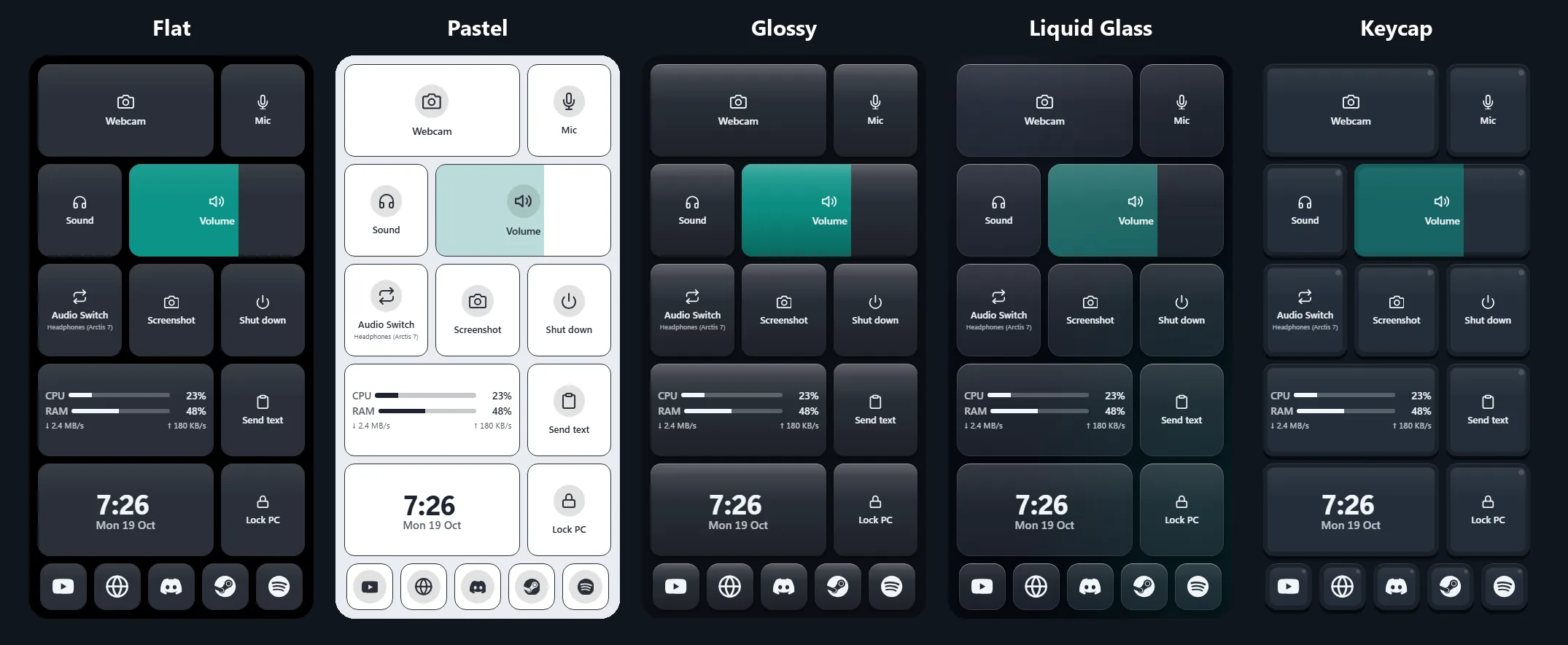
- the tile theme, one of five: Flat, Pastel, Glossy, Liquid Glass and Keycap (the default: tiles like mechanical keyboard keys, with an LED dot in the colour of the state); switched with the pill in the deck header
- the background (auto, light or dark), set in Studio
Both sync to all connected phones. The PC window, Studio and the settings pages are done in the calm Graphite style and follow the light or dark Windows theme.
Section read?